Matt Godden

human : artist

Bring content into view.

Category : Workflows

Workflow solutions to achieve goals.

Refining Image Ingestion

This is a refinement of my workflows for ingesting files from an iPhone or iPad camera, to move them onto my photo archive drive, and allows the removal of Image Capture from the process, which is good because the macOS USB driver can be flaky, and I’ve had at least one system crash from physically plugging in my iPhone.

So, first things first; the relevant file structure. This involves two parts of the filesystem:

  • I have directories in my home directory (indicated by ~), and then
  • I have an external drive (actually an NVME SSD on a PCI card) were my photography is kept.

The directories are:

  • ~/Downloads
  • ~/Pictures
  • ~/Movies
  • /Photo_Drive/Cameras/MyiOSDeviceModel

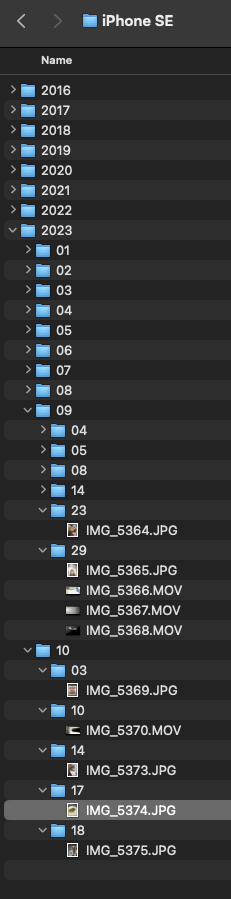
In effect, what this workflow does, is move all Airdropped movies and images to their respective type folders in my home directory, and then, if they’re the original images taken on the devices, shifts them over to the root folder for the respective device on the photo drive, and once they arrive there, they’re processed into a Y/M/D folder hierarchy.

This allows is for things airdropped to jump off the processing train in the appropriate places if they’re not images taken with the cameras on the devices.

So, the way this works is, when you Airdrop images or movies from the iOS device to the Mac, they are automatically deposited:

In ~/Downloads, a Hazel workflow attached to that directory then does the following actions:

  • If the Date Added is in the last 1 minute, and
  • the kind is Image:
    • Move to folder: ~/Pictures
  • If the Date Added is in the last 1 minute, and
  • the kind is Movie:
    • Move to folder: ~/Movies

In ~/Pictures, a Hazel workflow does the following actions:

  • If the Date Added is in the last 1 minute, and
  • the Device Model is MyiOSDeviceModel (as revealed by the EXIF metadata in one of its files), and
  • the Kind is HEIF Image:
    • Move to folder /Photo_Drive/Cameras/MyiOSDeviceModel

In ~/Movies, a Hazel workflow does the following actions:

  • If the Date Added is in the last 1 minute, and
  • the Where From is MyiOSDeviceName (as revealed by the EXIF metadata in one of its files), and
  • the Kind is Movie:
    • Move to folder /Photo_Drive/Cameras/MyiOSDeviceModel

In /Photo_Drive/Cameras/MyiOSDeviceModel, a Hazel workflow does the following actions:

  • If the Subfolder Depth is 0, and (this keep the action occurring in only the root folder)
  • Date Added is in the last 1 minute:
    • Sort into subfolder (based on the dates in the image’s EXIF):
      • (YYYY)
        • (MM)
          • (DD)


This final workflow is also used for each camera directory for my non iOS device cameras, so when I directly import images to their root folders (by dragging from a mounted memory card), the same Y/M/D hierarchical folder structures are created / used.
Long Document Proofing

One of the issues with the EPUB workflow, is that EPUB documents are .zip compressed. This makes proofing & previewing while you’re working problematic, as some reading apps can’t deal with uncompressed documents. With Apple’s deprecation of EPUB authoring and proofing support:

As documented here.

…proofing on an iPad became a pain point that made the work simply not fun to do.

I’ve been thinking about a solution to this on and off for a while now, and a solution hit me that has obviously been percolating up for a while.


Use iFrames.

A screenshot of a web browser showing a multi-page layout of left-right spreads, ending with a single left page of the book's rear cover.
iFrame-based layout in browser.

I don’t know why I didn’t think of this sooner, but the solution is at once clever, and so straightforward it makes me feel stupid for having not seen it earlier.

What you do, is set up the entire document of facing pages using an iFrame for each page, and then set the iFrame sources to the xhtml files inside your EPUB development directory.

Thus the HTML:

<!DOCTYPE html>
<html>
<head>
 <title>The Title</title>
 <link rel="stylesheet" href="styles.css">
</head>
<body>
 <div id="the_container">
  <div class="spread rightonly">
   <iframe src="path-to-your-dev.epub/OEBPS/cover.xhtml"></iframe>
  </div>
  <div class="spread doublepage">
   <iframe src="path-to-your-dev.epub/OEBPS/inside_front-cover.xhtml"></iframe>
   <iframe src="path-to-your-dev.epub/OEBPS/page_001.xhtml"></iframe>
  </div>
 
  ...
  
  <div class="spread doublepage">
   <iframe src="path-to-your-dev.epub/OEBPS/page_120.xhtml"></iframe>
   <iframe src="path-to-your-dev.epub/OEBPS/inside_back-cover.xhtml"></iframe>
  </div>
  <div class="spread leftonly">
   <iframe src="path-to-your-dev.epub/OEBPS/back-cover.xhtml"></iframe>
  </div>
 </div>
</body>
</html>

And then the CSS:

html, body {
 margin: 0;
 padding: 0;
}

body {
 background-color: gray;
 transform: scale(0.5); /* set the zoom degree to view */
 transform-origin: 50% 0; /* centres the zoom in the middle of the browser */
}

iframe { /* the width and height of the EPUB's declared viewport */
 border: 0;
 width: 1200px;
 height: 800px;
 margin: 0;
 padding: 0;
}

#the_container {
 width: 2400px; /* double your EPUB's viewport width */
 min-width: 2400px;
 margin-right: auto;
 margin-left: auto;
}

#the_container div {
 margin-top: 10px;
 margin-bottom: 10px;
}

.spread {
 width: 100%;
 display: flex;
}

.rightonly {
 flex-direction: row-reverse;
}

.doublepage, .leftonly {
 flex-direction: row;
}

The nifty thing is the transform scale and origin in the body tag’s CSS, so you can scale the whole thing down if the spread won’t fit in your display’s available space, or if you want a more document-wide overview.

Enjoy.


If this article was of use, a donation or buying something would help support my projects.


Cutting the Apple Podcast Cable.

I’ve been listening to podcasts for over 20 years. The entire time, my collection has been subscribed, and managed within Apple’s iTunes.

No longer.

Podcasting is a medium under threat from a number of assailants:

  1. Advertising agencies and “Podcast Networks” using Dynamic Ad Insertion: Advertising has shifted to “zero effort” pre-recorded ads, that are geotagged and invasively targeted to the listener. It’s a worse version of commercial radio advertising.

    I was listening to a recent episode of a show on the “i heart radio” network (fetch my vomit bucket), and it had (if I recall) eight 30 second pre-recorded ads in a single break.

    Prior to this development, podcast advertising was almost exclusively sponsor reads by the hosts of the show – you could enjoy listening to them, because the hosts would bring their own charm to the commercial.

    Now you’re listening to a (typically) American or British show, and you suddenly get a broad Australian (in my case) accent pitching you McDonalds, or coal-fired power. So now, I skip ads reflexively.
  2. Independent Podcast Applications trying to do both too much, and too little: Every podcatcher & podcast player I’ve found so far, that run on Mac and iOS, are loaded up with recommendation garbage and show discovery, but won’t actually provide a competent interface or methodology for managing a locally-stored podcast collection*.
    • They all seem to presume that either no one collects podcasts, treating them as ephemerally as radio, or that everyone burns down their entire back-catalogue collection every time they change application, and just re-downloads everything from scratch. Every app features OPML export to migrate the feeds between apps, but no one provides a mechanism to migrate the downloaded episode library.
    • If you have files that aren’t attached to a feed, they’re effectively inaccessible, because none of the apps (from my experience) will let you just point to a directory full of files, and treat that as a show.
    • There’s also the sheer idiocy of using cloud services to sync the actual episode files themselves, tens or hundreds of megabytes in size, rather than just direct transferring them between devices. I think there has to be something profoundly wrong with you, if you think the way to move data a foot across a desk, is to round-trip it via a server on the other side of the world.
  3. Apple: As the big dog in podcasting (though I note with significant schadenfreude that Spotify has apparently dethroned them), Apple is attempting to pivot from simply providing good applications, and a directory of shows, to selling subscription-based premium podcast feeds (and providing a mediocre podcast application).

    To that end, Apple has stymied access to the location where Podcasts.app on the Mac downloads its files; using randomised strings for names of files and directories, therefore removing human readability. Worse still, it’s enforced location is on the boot drive – something that can’t be upgraded on almost all Macs, and for which Apple typically charges approximately four times the industry norm, per gigabyte**.

    This comes after years of streaming-oriented changes to podcasts in iTunes, which made the process of keeping your files safe from auto-deletion more and more uncertain. It eventually required manually saving every single file, OR accepting a risk that if a feed moved and reposted its back catalogue to a new server, or changed the naming scheme for back catalogue files, iTunes would download the entire back catalogue again.

*Which excludes Overcast, because its entire basis is you rent space on Overcast’s servers, and store your collection there. However, I don’t build my archive plans on how long a single developer remains interested in continuing an app or business, nor on the volatility of server rental.

**I’ll note with some bitter irony that Mac OS X used to have human-readable plain text XML for all preference files, but they’ve been largely replaced with binary encoded versions that require a dedicated application to decode, and this regressive change was justified as saving disk space. Sure Apple, we’ll save a few megabytes so you can cheap out on the SSDs you put in machines, which you’ll fill to the brim with podcast files we used to keep on external drives.

So to hell with Apple.

Where to from here? Well, I’ve started by:

  • Manually copying all my podcast back catalogue episodes out of my old iTunes Music directory, into a new Podcast Archive: Everything there is organised in human-readable simple directory structures, with a folder for each show, and every episode in the appropriate place.

    To deal with shows which have changed server, or changed their “album artist” or “artist” ID3 tags (which is what determines the name of the show / feed within the Podcasts.app), I’ve used a tag editor (MP3tag) to align all the previous episodes to the show nomenclature of the newest episodes.

    For mass file renaming, to match the name schema of new downloads (because iTunes used to do strange things to filenames when saving podcast downloads), I’ve used Name Mangler.

    For cases where the date created and modified of files are out of order, I’ve used A Better Finder Attributes to adjust things so that Finder’s view of the episodes can, by sorting as a list, reflect their original feed order.
  • Setting up a new podcatcher application: Doughnut – an open source podcatcher and player. It’s still relatively early in development, and seems to have become somewhat dormant, but it’s a workable, basic application that has no frivolous show discovery or non-core functionality. I’ve set up all my subscriptions in Doughnut that were previously active in iTunes. Doughnut downloads new episodes automatically to disk, but that doesn’t solve keeping them in my new Podcast Archive, since it can’t display existing files on disk – it only knows about things it has downloaded.
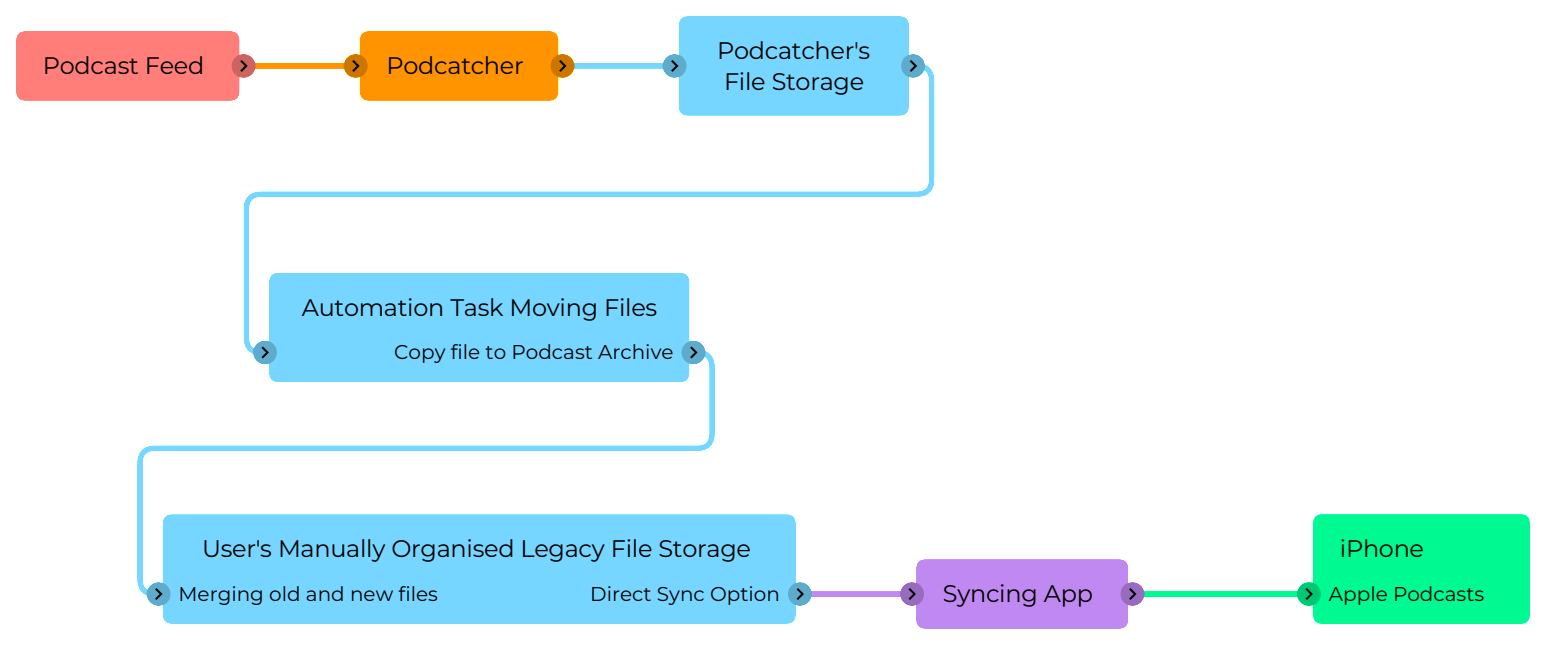
  • Transferring downloads to the Podcast Archive: Once Doughnut downloads a file, Hazel (a system automation tool) copies the file to the corresponding directory in the Podcast Archive.

    The setup for this is pretty simple. In Hazel, I configure every folder Doughnut created for each subscribed show as an automated folder. I add an automation to each that has the rules; “File was created in the last 5 minutes”, and “move to (the Podcast Archive folder for that show)”. You could achieve this with the system’s built-in Folder Actions, or Shortcuts, etc.

    The nifty thing about this is that since both the Doughnut directory structure, and the Podcast Archive are on the same logical APFS volume, the copy doesn’t use any more space – the two files are just references to the same thing, but behave as if they’re independent objects. Another advantage of this is if Doughnut has an issue, like randomly deleting files, it’s only acting on its downloaded copies, not your actual Podcast Archive. This of it as air-gapping your collection from the podcatcher.
  • Viewing the Podcast Archive: While I can just browse my files in Finder, in any of the traditional views, what if I wanted a more holistic overview of all my shows in the archive, in a single list, ordered by date? Remember Spotlight Finder searching, and Smart Folders / Saved Searches? A bunch of wonderful technologies that have sat, undercooked without full GUI support sine Apple bought Siri and realigned the company around the idiotic notion that a server on the other side of the world was the best way to search for things on your computer. What we do, is:
    • navigate to the root directory of the Podcast Archive
    • in the search field at the top of the Finder window, type a single space character. This non-discoverable and unintuitive action will bring up the GUI options for crafting your search criteria.
    • hit the plus sign
    • set up Kind, as Document, and then hit plus again
    • set Date Modified as however far back you want the list to show, if you want to limit the list; the last month, for example.
    • Save your search (I keep saved searches specific to a volume on the root level of that volume) and choose to add it to the Finder sidebar, because that makes it available for use in open / save dialogue boxes (normally, Smart Folders can’t be accessed through an open / save file browser).
  • Syncing to iPhone: Here we come to iMazing, which has the ability to copy files from Finder, directly into the Podcasts.app on your iOS device, without having to go the whole Finder sync procedure.

    A word of caution; one of the goals of this process was to completely cut Apple out of my podcast life. When you install / first launch Apple’s Podcasts.app on iOS, it defaults to iCloud enabled, and downloads all your podcast subscription records from your iCloud account in the background before you interact with it. It is VERY hard to get rid of this once it’s in the app, so an important step within iTunes (or the Podcasts.app on Mac) is to:
    • Manually unsubscribe from every show to which you’re subscribed (and give that a few minutes to propagate to iCloud).
    • Switch off iCloud podcast sync on your Mac.
    • THEN delete Podcasts.app from your iPhone, nuking all its data with it.
    • Reinstall Podcasts.app on your iPhone, it should then load with an empty library because iCloud has no data for it.
    • Disable iCloud Sync in the settings app for Podcasts.
    • Now you’re ready to copy files with iMazing. One thing – you may encounter a bug where Podcast artwork isn’t copied across. As of mid-September, iMazing is aware of it, and are working on a fix.

And there you have it – you are now effectively back to the way things were when Podcasts were subscribed to in iTunes, and synced to an iPod. You lose a couple of things, like play counts, and synced playhead positions. However, iMazing’s drag & drop podcast loading (for which you can use your super-handy Smart Folders as your source) is a better workflow than the original iTunes sync. You also gain the ability to edit your podcast files (so those 10 year old adds for Lootcrate…) without worrying about breaking feed continuity.


More Flowcharts

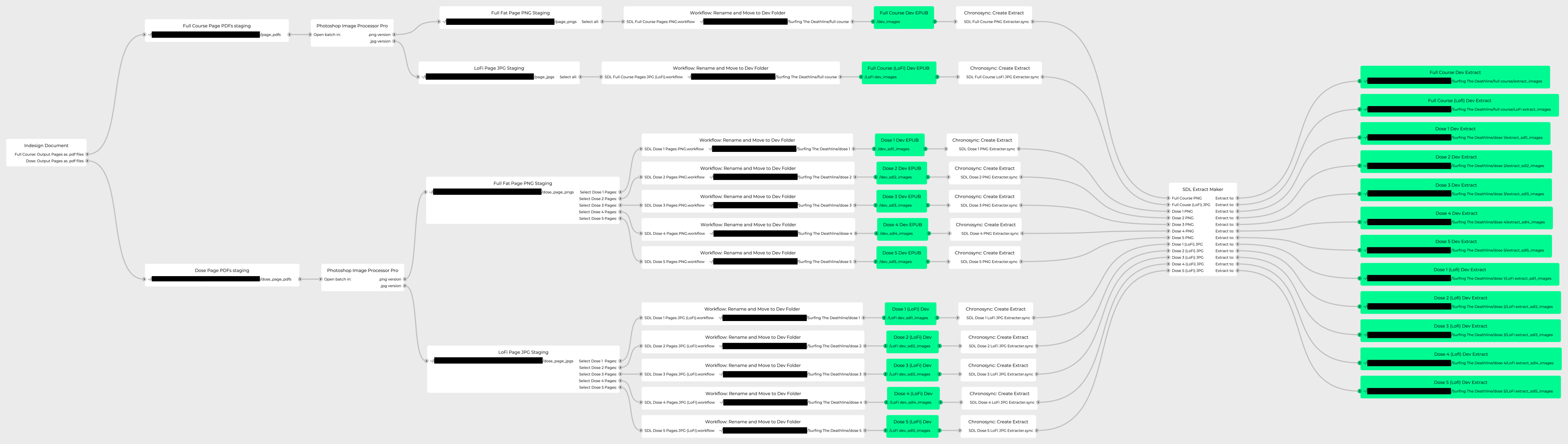
I realised recently that in the changeover to my new workstation, and the change to new operating system versions, my entire workflow for producing a Surfing The Deathline page art errata fix was broken.

Worse still, I couldn’t fit the entire thing in my head at once, so there was nothing for it, but to start mapping the whole thing out.

The process:

  • Adobe Indesign CS5.
    • Output all pages to individual .pdf files
    • Adobe Photoshop CS5.
      • Convert each page to .png, and .jpg files
      • Automator Workflow.
        • Rename files and copy them to the appropriate development folders
        • Chronosync Workflow.
          • Copy a subset of files to be used in the extract versions to the appropriate extract development folders.

A thought that occurs is to put the entire process into the Virtual Machine I’m using to run the Adobe apps, so that they’re sealed off against change.


Solve for A.

This year my old Mac Pro running macOS 10.13 High Sierra shuffled into the grave. I needed a newer computer quickly, and my options were either Apple-Silicon Mac Studios, or secondhand 2019 Mac Pros.

For reasons, I bought the Mac Pro.

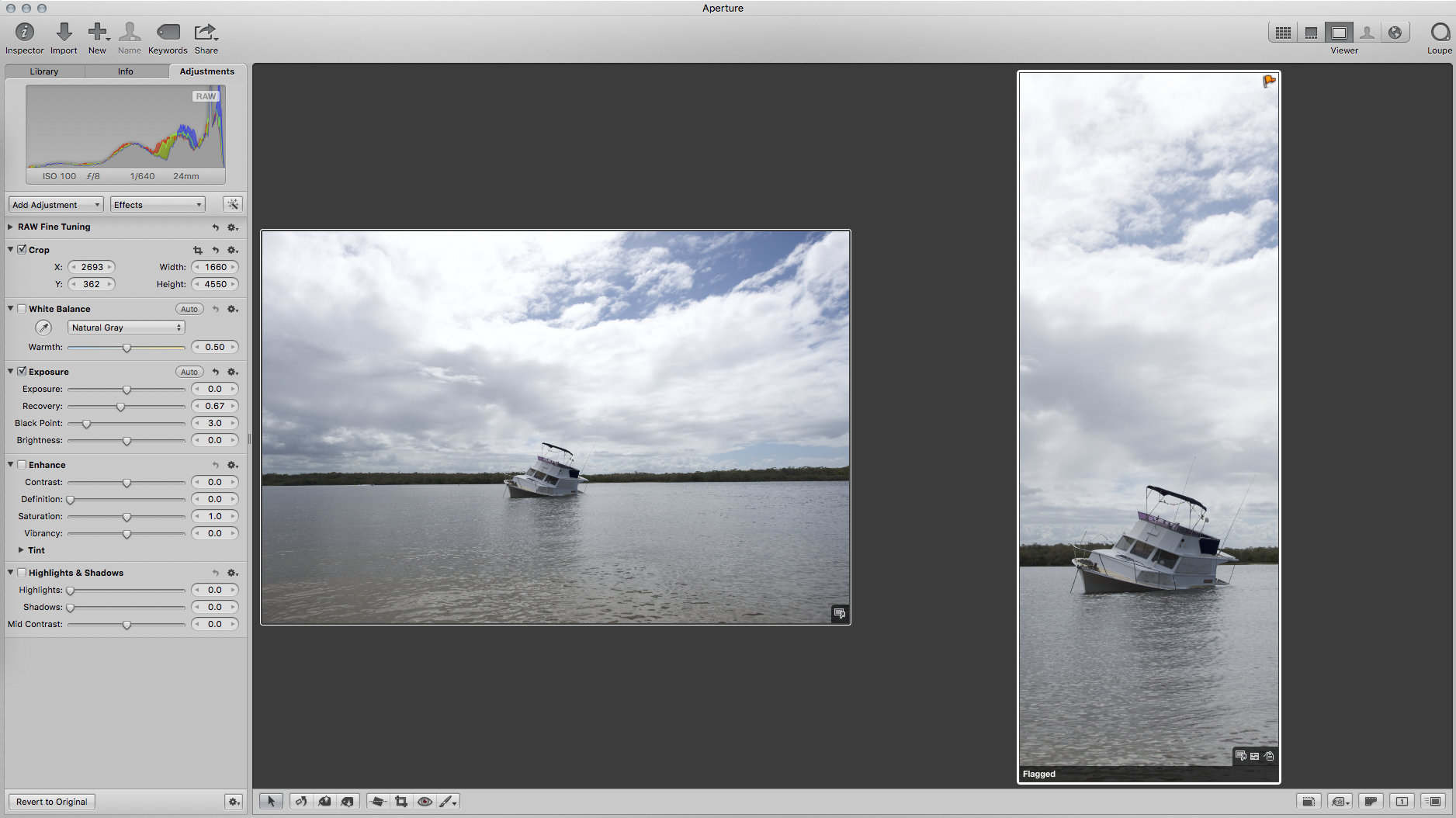
This new machine runs macOS 13 Ventura, and that’s a problem, because it has broken my entire photography workflow, which was based around Apple’s Aperture Digital Asset Manager.

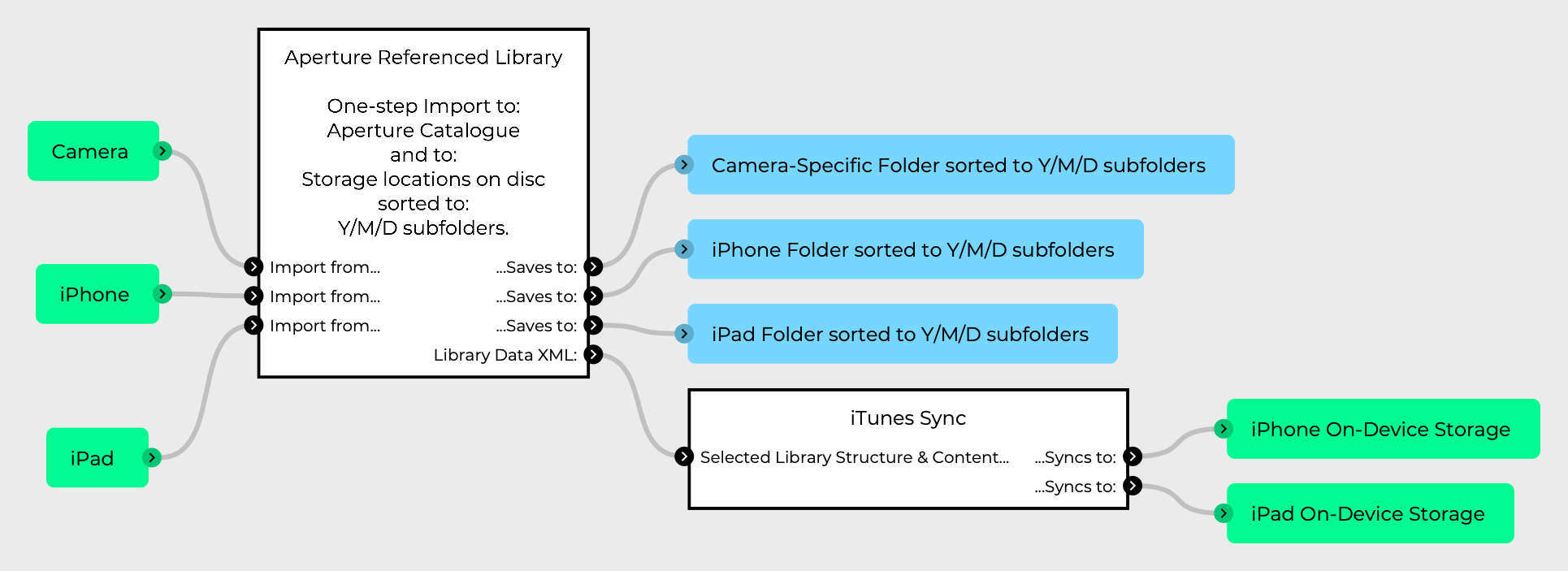
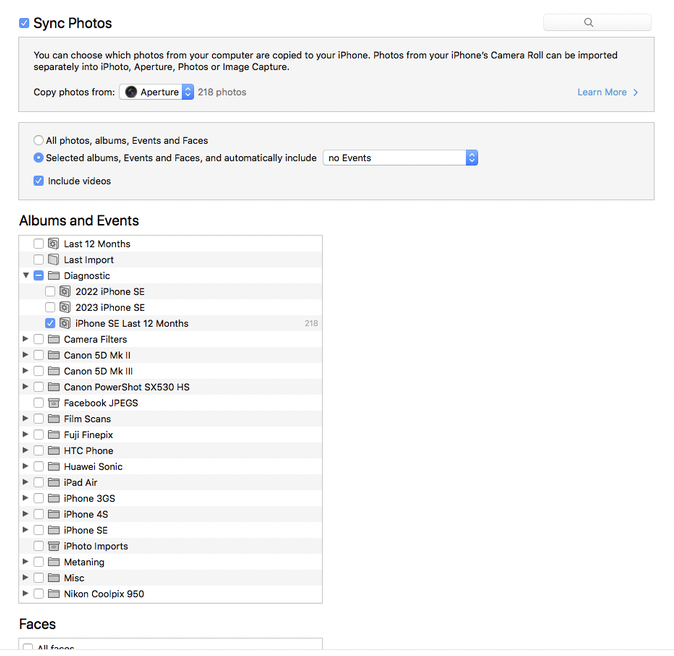
Here’s a diagram of how my photo management worked with Aperture, my cameras, and my iOS devices:

The import, to library, to sync workflow was pretty simple:

  1. Plug the camera or device into the computer.
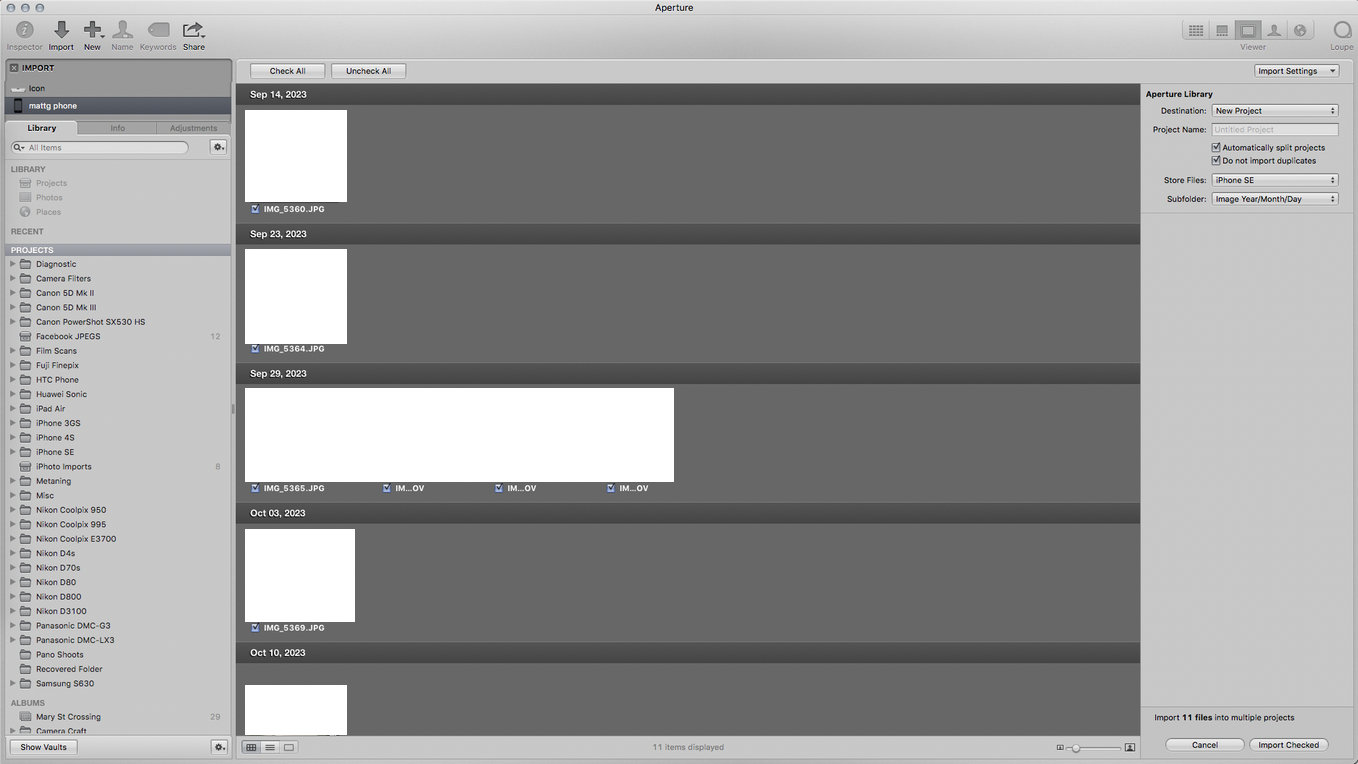
  2. Select the images you want to import.
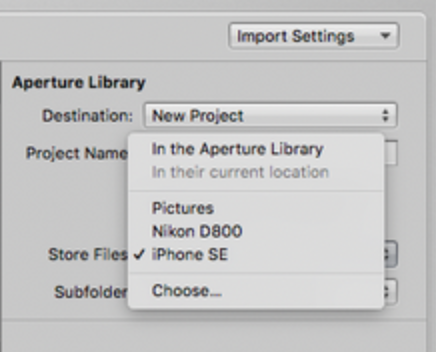
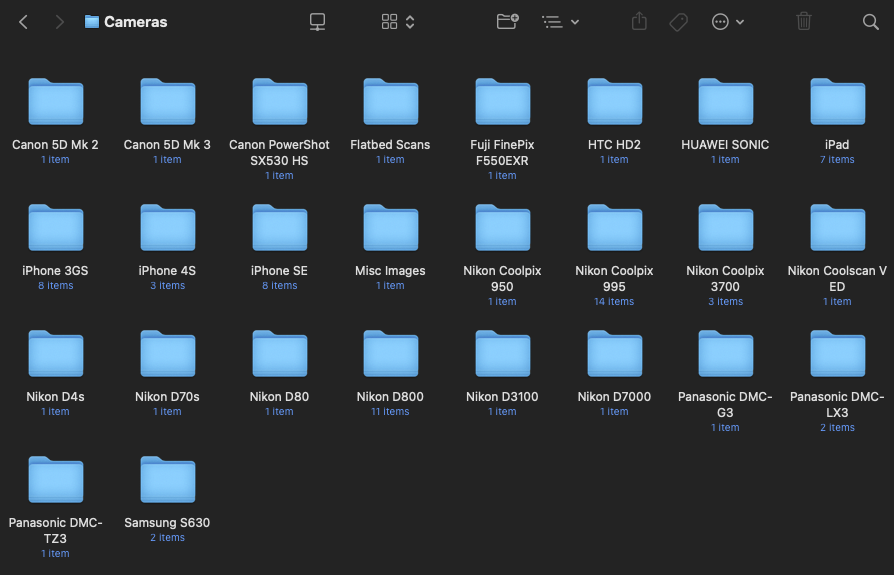
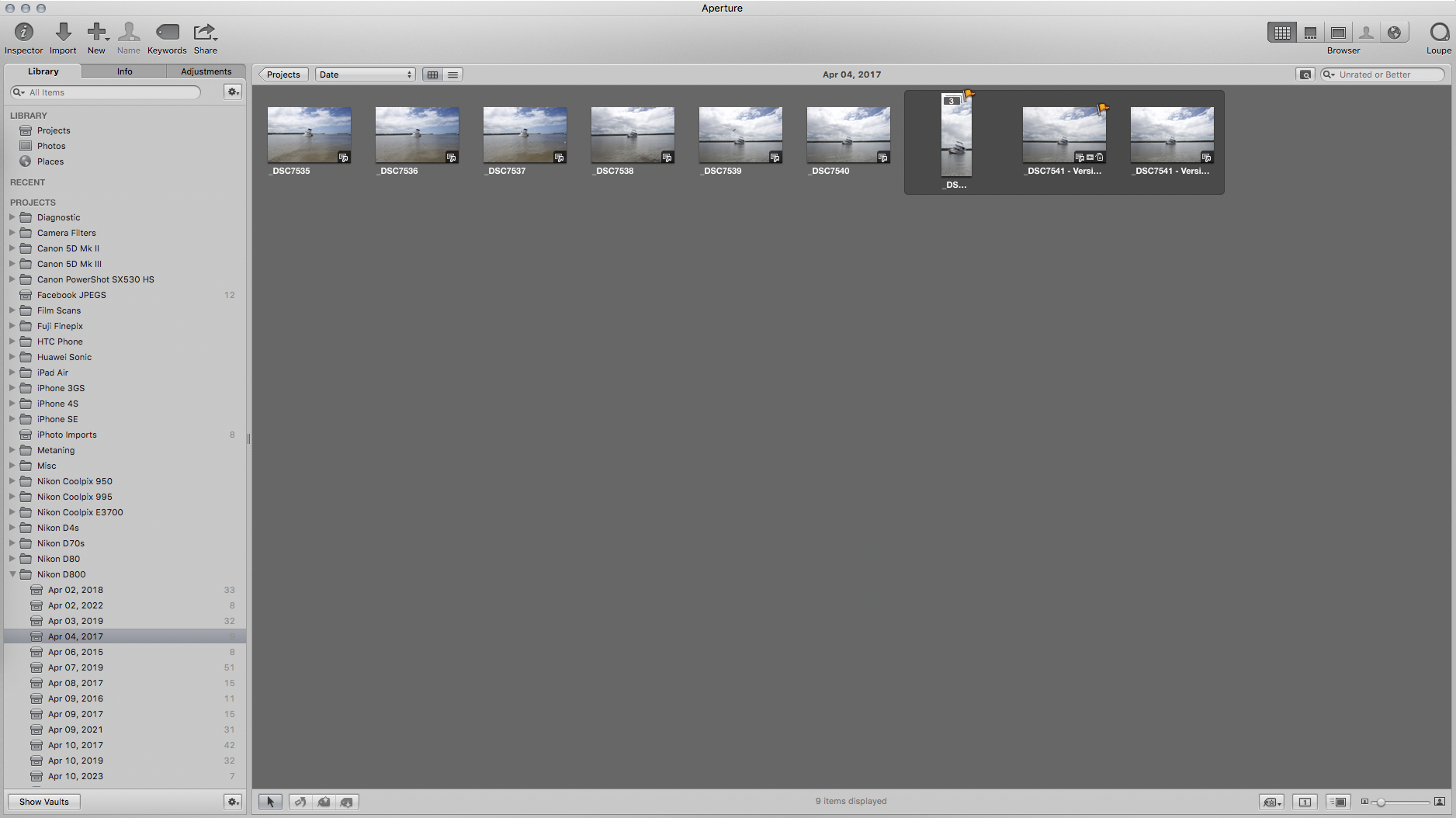
  3. Choose where you want the images copied to on disc (this is populated by use, so would eventually have all the folders shown in the filing structure). I choose to keep them organised by device.
  4. Aperture copies the files to disc, placing them in Year /  Month / Day subfolders.
  5. Aperture creates events in the Aperture catalogue, which correspond to the shooting sessions.


From there you can:

  • Manage your images in the catalogue.
  • Edit images.
  • Sync images back to your iOS devices.

What Went Wrong?

This process doesn’t work in Ventura. For a start, Aperture won’t run by default under Ventura. There’s Retroactive, which purports to modify older Apple apps to run on the new operating systems, but it isn’t working for me (images won’t display). iTunes doesn’t work either (Retroactive excepted) but that has a replacement in Finder sync. Aperture’s loss is a real pill, however, because in its wake there is no tool that can do all the things it was capable of doing.

One option to keep these older tools working, is to use them via virtual machines. Aperture will run in a VM, and all of its import and organisation utility seems to function correctly. One thing it cant do however, is display full-size images. This is due to a lack of support for virtualised GPU access, in the versions of macOS which support Aperture.

Apple Photos:

Photos was supposed to be a replacement for iPhoto and Aperture, however there are some significant shortcomings. Namely:

  • Photos cannot import from device to a referenced library structure – in other words it can’t move files from device, to your choice of storage location.
    • It can import to a referenced library if the files are already in their final storage location.
  • Photos importing to a managed library structure destructively renames files when it stores them in its internal storage location.

So Photos fails on that first instance – it can’t be the universal ingestion tool to get my images off my devices, unless I want to give up my entire file management structure, and accept my files being destructively renamed.

Nope.

There’s also the matter of bitten once, not going to be bit again. After investing in an Apple solution for this whole process, I don’t want to trust the company with a concentration of functionality. You can never know what core features might disappear from the software, because someone in the company has an office politics agenda to change its direction.

There is another ingestion option, and it’s…

Image Capture:

Image Capture is a very old application, which can import from any device, to any location. This would seem ideal, except for one shortcoming:

  • No subfolders.

Image Capture can only import to a flat folder location – no Year / Month / Day sub folders. This brings a crisitunity in that it forces me to rethink just how much of my process I invest in any one application, and maybe break the process down, so as to ensure no one application can own the entirety of my photo management process.

The New Workflow:

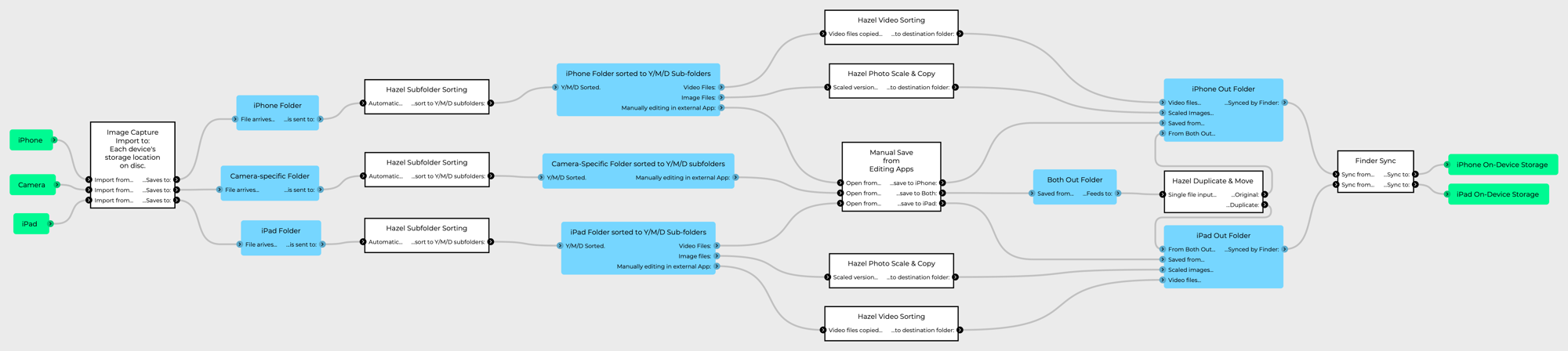
The glue of the new workflow is Hazel – an automation system I’ve been using for a while, which is effectively a more reliable version of Apple’s Folder Actions. Thus:

This is a much more complicated pipeline at first glance. However, it has a high degree of modularity, and actually allows for flexibility the old system lacked. For example, the integration of manual saving of edits. Instead of having to save from an editor, then re-import to Aperture etc, the edit can happen in any application.

This also provides a framework for Digital Asset Managers to be connected in. CMYE’s Peakto looks to be an interesting meta-manager, which can look inside other DAM libraries. Photos is also an option, since one of the things Hazel can do is to automatically import images to the Photos library, so in that second round of Hazel processing after the images are in their Y/M/D folders, there could be an “import to Photos” process.

However, I refuse to trust Photos to continue support of referenced libraries, so it’s probably better to not start with it at all.

Zero DAM:

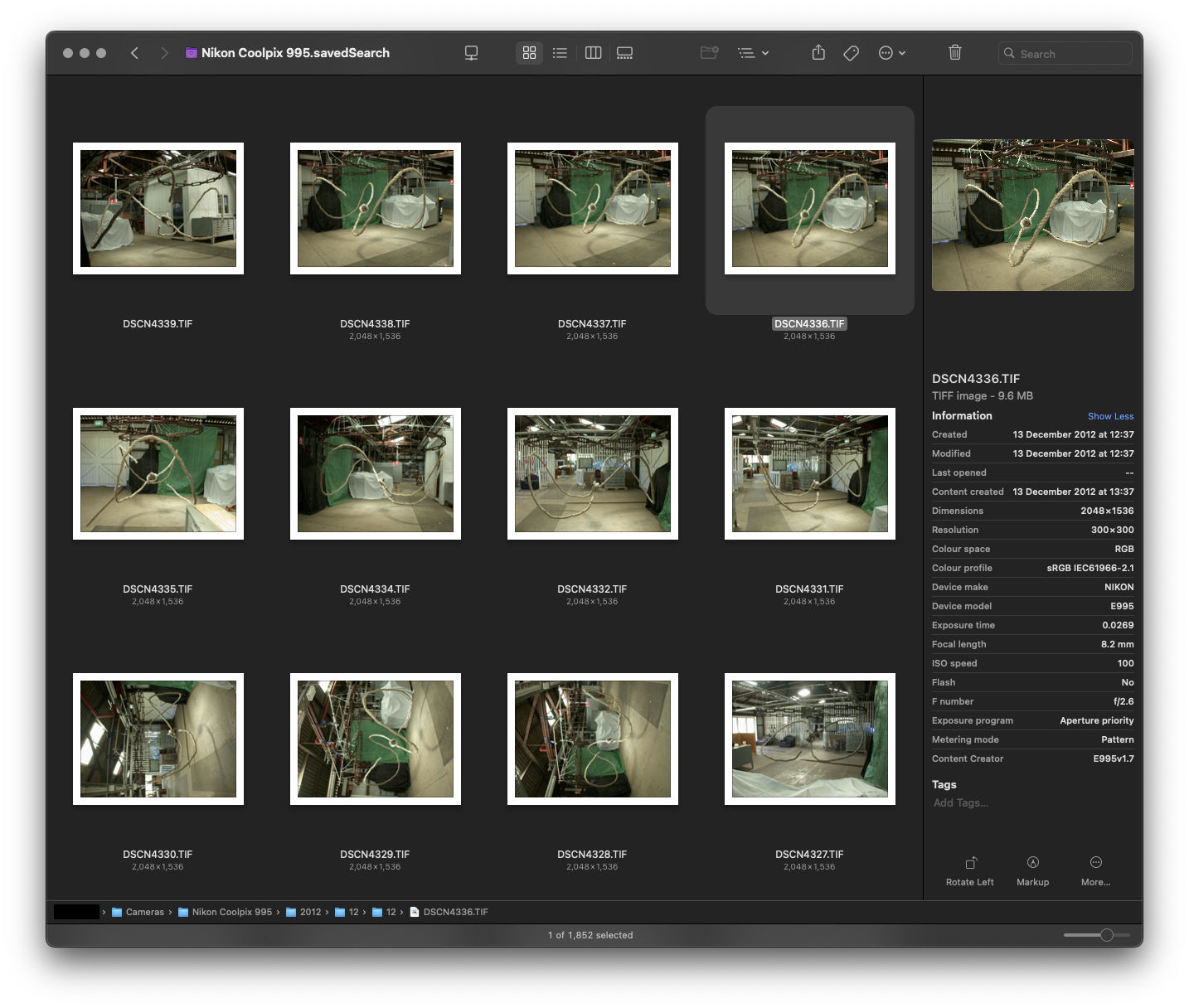
There’s also an interesting alternative to get things working quickly, and that’s not using a DAM at all, but just saving search criteria as smart folders in the filing structure where your images are kept:

In this system, you’d simply never need to use the DAM for a main catalogue – Finder can do most of the tagging etc for you, and then you can use dedicated editing DAMs like Capture One when you want versioned editing on a single file.

Edit: A problem with Zero DAM was discovered, where Spotlight can refuse to surface files with certain extended attributes. This is addressed / solved here.